How to Check for a Bottleneck With MSI Afterburner
By George 4 min read
Disclosure: This post may contain affiliate links. If you buy through them, we may earn a commission at no extra cost to you.
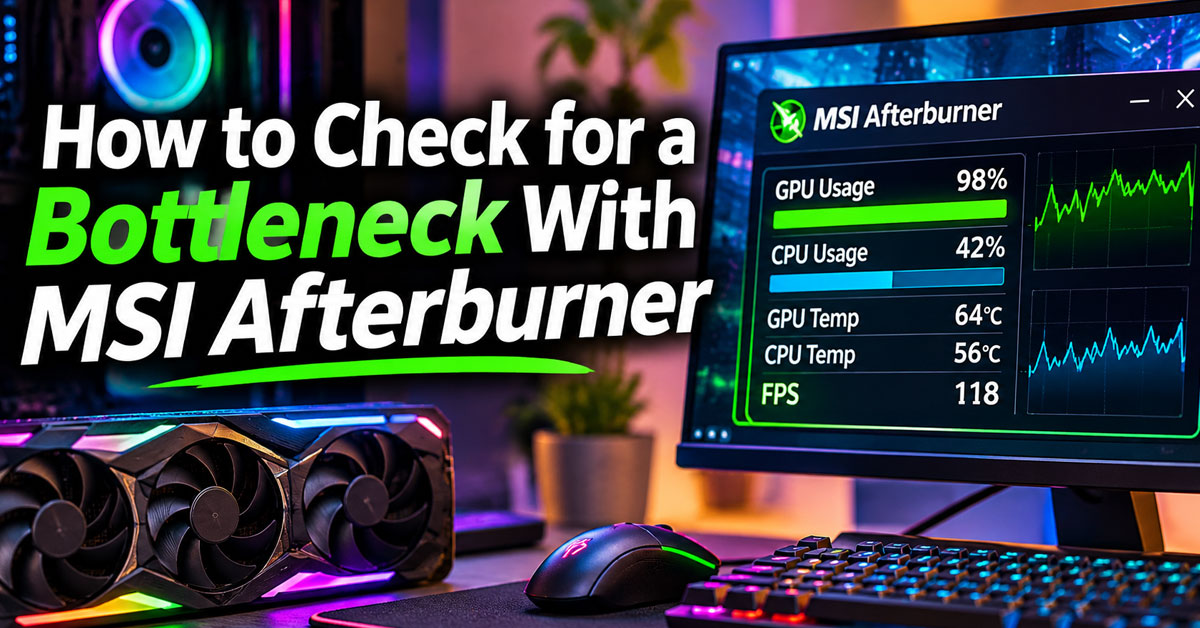
To check for a bottleneck with MSI Afterburner, watch your GPU usage, per-thread CPU usage, and FPS while you play a demanding game. If GPU usage stays well below 95% while one or more CPU threads are near 100%, your CPU is the likely bottleneck. If GPU usage stays at 95–100%, your GPU is setting your frame rate, which is normal for most gaming PCs.
Afterburner shows how your PC behaves in a real game. To see how well your parts are matched before you test or upgrade, start with our free bottleneck calculator.
How to Set Up MSI Afterburner
The setup takes about five minutes. You only need to do it once.
- Download MSI Afterburner from MSI or Guru3D, since fake download sites exist.
- Run the installer and keep RivaTuner Statistics Server selected. It powers the in-game overlay.
- Open Afterburner, select the gear icon, and go to the Monitoring tab.
- Click the check mark beside each stat listed below to enable it.
- Select each stat, check Show in On-Screen Display, and select Apply.
- On the On Screen Display tab, assign a toggle hotkey, then select OK.
Hotkeys only work after you close the settings window.
Stats to Enable
| Stat | Why it matters |
|---|---|
| GPU usage | The main sign of a CPU or GPU limit |
| CPU usage | Shows total processor load |
| CPU1, CPU2, and other thread usage | Reveals overloaded threads that total CPU usage hides |
| Framerate | Shows your current FPS |
| Frametime | Reveals stutter and uneven pacing |
| GPU temperature and CPU temperature | Help you spot thermal throttling |
| GPU memory usage | Shows how much VRAM is in use |
| RAM usage | Shows how much system memory is in use |
How to Run the Bottleneck Test
- Turn off V-Sync and any FPS cap, since a limit can lower GPU usage and skew the result.
- Launch a demanding game at your normal settings and resolution.
- Press your hotkey to show the overlay.
- Play for 5–10 minutes, including busy scenes. Ignore menus and loading screens.
- Look for patterns that last, not brief spikes.
- Lower your resolution or graphics settings, then repeat the same scene.
Step 6 is your best confirmation. If FPS rises, your GPU was the limit. If FPS barely changes, your CPU was likely the limit. Our guide to how resolution affects bottlenecks explains why this works.
How to Read Your MSI Afterburner Results
Use this table to match your readings to the likely cause.
| What you see | What it likely means | What to do |
|---|---|---|
| GPU at 95–100%, CPU threads have headroom | GPU limit | Nothing, unless your FPS is too low |
| GPU well below 95%, one or more threads near 100% | CPU bottleneck | Lower CPU-heavy settings or plan an upgrade |
| GPU below 95%, FPS sits at a fixed number | FPS cap or V-Sync | Remove the cap and test again |
| FPS drops as temperatures climb and clocks fall | Thermal throttling | Check your cooling |
| RAM or VRAM nearly full, with stutter | Memory limit | Lower textures or add RAM |
| GPU and CPU both moderate, with low FPS | Game engine or software limit | Update the game and drivers, then close background apps |
Don’t Rely on Total CPU Usage
A CPU can show only 40% total usage and still bottleneck your game. Many games lean on a few main threads, so one thread can be maxed out while the others sit idle. This is why per-thread monitoring matters. Our complete guide to CPU bottlenecking covers this in more detail.
A CPU bottleneck can also appear without any thread reaching 100%. If GPU usage stays low and FPS doesn’t improve at lower settings, your CPU may still be the limit.
Check Frametime Too
Frametime shows how evenly your frames are delivered. Spikes in the graph usually show up as stutter, even when your average FPS looks fine. Learn more in our guide to gaming performance metrics beyond FPS.
What to Do if You Find a Bottleneck
A small bottleneck is normal in every PC. It only needs attention if your performance falls short of what you want.
- CPU bottleneck: Enable XMP or EXPO, close background apps, or raise your resolution or graphics settings. If that isn’t enough, consider a faster CPU.
- GPU bottleneck: Lower demanding settings, use DLSS, FSR, or XeSS, and update your drivers. If FPS is still too low, consider a stronger graphics card.
- Overheating: Clean your PC, improve airflow, and read our guide to thermal throttling.
- Memory limit: Lower texture settings for VRAM issues, or see our guide to RAM bottlenecks.
Before you buy anything, test more than one game. CPU-intensive and GPU-intensive games can stress the same PC in very different ways. When you’re ready, use the bottleneck calculator to compare your current parts with a possible upgrade.
Frequently Asked Questions
Does MSI Afterburner show a bottleneck percentage?
No. Afterburner shows live hardware data, so you need to interpret the readings yourself. For an estimated percentage based on your parts and resolution, use our bottleneck calculator.
What GPU usage should I see while gaming?
In demanding games with no FPS cap, GPU usage should usually stay around 95–100%. Lower usage is fine if you’re using a frame limit or playing a lighter game.
Why isn’t the MSI Afterburner overlay showing?
Make sure RivaTuner Statistics Server is running and that you enabled Show in On-Screen Display for your stats. Then press your toggle hotkey with the settings window closed. Some games don’t support the overlay, so try another title if needed.
Does MSI Afterburner slow down my PC?
The overlay has very little impact on most PCs. Graphs and many extra stats add a bit more work, so keep your overlay simple if you’re chasing every frame.
Bottom Line: MSI Afterburner can reveal a bottleneck in minutes. Remove any FPS cap, watch GPU usage and per-thread CPU usage in a demanding game, then lower your settings to confirm the result. High GPU usage is usually healthy, while low GPU usage with a maxed-out thread points to your CPU.