Best Windows 11 Debloater
By George 5 min read
Disclosure: This post may contain affiliate links. If you buy through them, we may earn a commission at no extra cost to you.
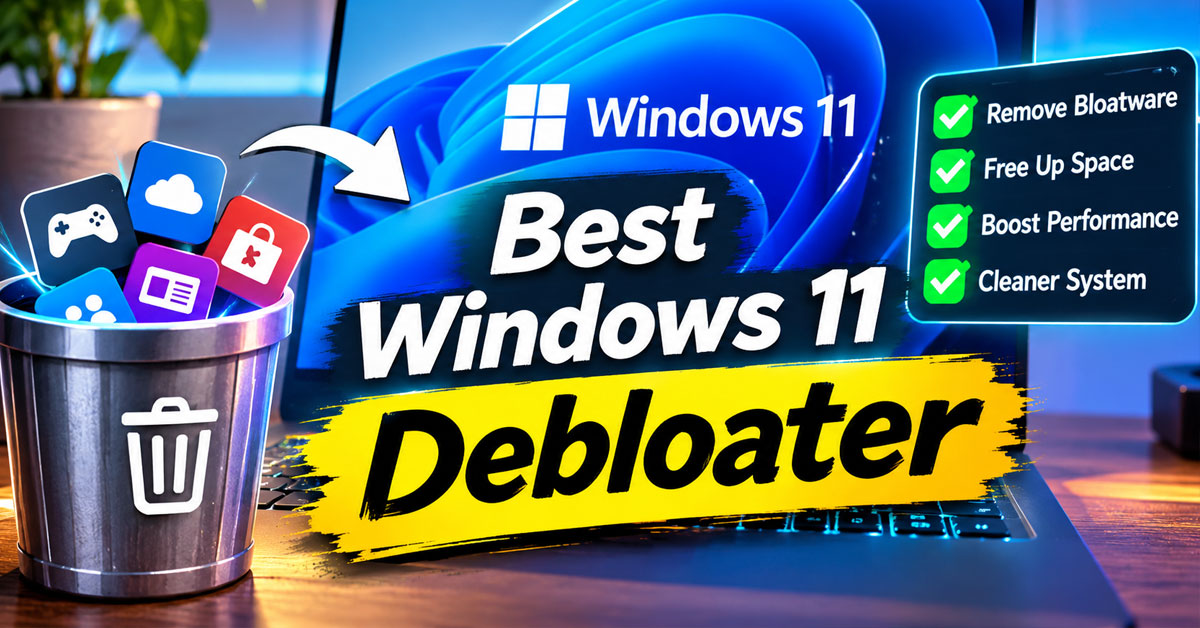
Win11Debloat is the best Windows 11 debloater for most people. It’s free, open source, actively updated, and its changes can be undone. Choose WinUtil if you also want to install apps and fix Windows problems from the same tool.
Quick Comparison
Every tool here is free to use.
| Tool | Best for | Type | Open source |
|---|---|---|---|
| Win11Debloat | Most people | Script with a menu and GUI mode | Yes (MIT) |
| WinUtil | An all-in-one toolkit | PowerShell app | Yes (MIT) |
| O&O ShutUp10++ | Privacy settings | Portable app | No |
| FluentTweaker | Turning off AI features | Desktop app | Source on GitHub |
| Winhance | A Settings-style interface | Desktop app | Source available |
| Tiny11 Builder | A fresh, lighter install | ISO builder | Source on GitHub |
Here’s what each tool can do:
| Tool | Removes apps | Changes privacy settings | Undo option |
|---|---|---|---|
| Win11Debloat | Yes | Yes | Registry backup and undo files |
| WinUtil | Yes | Yes | Undo for many tweaks |
| O&O ShutUp10++ | No | Yes | Reset to factory settings |
| FluentTweaker | Some | Yes | Each tweak is reversible |
| Winhance | Yes | Yes | Saved config files |
| Tiny11 Builder | Before installing | Some | Reinstall Windows |
1. Win11Debloat: Best Overall
Win11Debloat is a free PowerShell tool that removes preinstalled apps and turns off unwanted Windows features. It works on Windows 10 and 11, and its latest release came out in August 2026.
Why It’s Worth It
- Removes a wide range of preinstalled apps
- Turns off telemetry, targeted ads, tips, and suggestions
- Removes or disables Copilot, Recall, and Click to Do
- Turns off Bing results in Windows search
- Backs up the registry so you can restore your settings
- Can detect tweaks you already applied and undo them
Drawbacks
- Restoring a backup doesn’t reinstall removed apps
- The Microsoft Store is hard to restore once removed
- Most changes need a sign-out or restart
Choose it if: you want a trusted, reversible way to clean up Windows 11.
2. WinUtil: Best All-in-One Toolkit
Chris Titus Tech’s WinUtil combines debloating with app installs, troubleshooting, and Windows Update controls. It runs from one PowerShell command.
Why It’s Worth It
- Removes bundled apps and changes Windows settings
- Installs many popular apps at once
- Includes fixes for common Windows problems
- Lets you adjust how Windows Update behaves
- Offers Standard, Minimal, and Advanced presets
Drawbacks
- Needs administrator rights
- Downloads and runs a script straight from the internet
- Offers more options than a simple cleanup needs
- Saves a faster version for paying sponsors
Choose it if: you’re setting up a new PC and want one tool for everything.
3. O&O ShutUp10++: Best for Privacy Settings
O&O ShutUp10++ is a free privacy tool that puts dozens of Windows settings in one place. It isn’t open source, and it doesn’t remove apps.
Why It’s Worth It
- Runs without installing
- Marks which settings are safe to turn off
- Supports Windows 10 and 11
- Received an update in September 2026
Drawbacks
- Doesn’t uninstall preinstalled apps
- Isn’t open source
- Keeps automatic re-applying after updates for its paid Premium edition
Choose it if: you mainly care about privacy and want to avoid deep system changes.
4. FluentTweaker: Best for Turning Off AI Features
FluentTweaker is the latest version of the tool first released as Winslop. It groups tweaks by category and explains each one before you apply it.
Why It’s Worth It
- Covers AI features, privacy, the taskbar, File Explorer, and gaming
- Explains what each tweak does
- Says every tweak can be reversed
- Avoids one-click “optimize everything” buttons
Drawbacks
- Changed its name twice in 2026, so older guides use different names
- Is newer and less proven than Win11Debloat
- Doesn’t list a license on its main page
Choose it if: you want to see and approve each change yourself.
5. Winhance: Best Settings-Style Interface
Winhance is a free app that looks and works like a Windows settings page. It handles app removal, privacy, performance, and appearance tweaks.
Why It’s Worth It
- Removes Windows apps and optional features
- Installs apps through WinGet
- Saves your settings to a file for your next PC
- Can create custom Windows ISO files
- Offers installable and portable versions
Drawbacks
- Uses a license that allows free use but not forks
- Has many settings to work through
- Doesn’t create an automatic undo file like Win11Debloat
Choose it if: you want a polished app instead of a script.
6. Tiny11 Builder: Best for a Fresh Install
Tiny11 Builder creates a smaller Windows 11 installer from an official Windows image. It removes bloat before Windows is ever installed.
Why It’s Worth It
- Builds from an official Windows image
- Keeps updates, Defender, and recovery in its standard mode
- Lets you choose what to remove in custom mode
- Supports x64 and ARM64 PCs
Drawbacks
- Requires a clean install of Windows
- Its Core mode can’t be updated and turns off Defender
- Some custom removals can break Windows
Choose it if: you’re reinstalling Windows anyway. Test the installer in a virtual machine first.
How to Choose
| If you want | Choose |
|---|---|
| A safe, reversible cleanup | Win11Debloat |
| Debloating plus app installs and fixes | WinUtil |
| Privacy changes only | O&O ShutUp10++ |
| To approve each change yourself | FluentTweaker |
| A polished app instead of a script | Winhance |
| A clean install with no bloat | Tiny11 Builder |
Debloaters to Avoid
These names still show up in older guides, but they’re no longer updated.
| Tool | Why to skip it |
|---|---|
| Optimizer | Archived in January 2026 and replaced by a new project |
| Windows10Debloater | Archived in 2023 and built for Windows 10 |
| xd-AntiSpy | Hasn’t been updated since September 2024 |
How to Debloat Windows 11 Safely
- Create a restore point and back up your important files.
- Update Windows before you start.
- Download the tool only from its official page.
- Use one debloater at a time.
- Start with the default or recommended settings.
- Keep the Microsoft Store, so you can reinstall apps later.
- Restart, then check that Windows Update still works.
Windows also lets you uninstall many apps without extra software. Go to Settings > Apps > Installed apps, select the three dots next to an app, and choose Uninstall.
Frequently Asked Questions
Is it safe to debloat Windows 11?
Yes, if you use a well-known tool and keep a restore point. Problems usually come from removing too much at once, such as the Microsoft Store or core components.
Does debloating make Windows 11 faster?
It can help, especially on older PCs, by cutting background apps and startup items. On a modern PC, the bigger benefits are fewer ads, fewer pop-ups, and more privacy.
Can I remove Copilot from Windows 11?
Yes. Win11Debloat can remove or disable Copilot, Recall, and Click to Do. FluentTweaker also focuses on turning off AI features.
Will Windows updates undo my changes?
Sometimes. Major updates can reinstall apps or reset settings. Rerun your debloater after a big update and check what changed.
Can I undo a debloat?
Usually. Win11Debloat includes a registry backup and undo files, and most removed apps can be reinstalled from the Microsoft Store. A restore point is the last resort.
Is there a built-in way to debloat Windows 11?
Partly. You can uninstall many apps in Settings. Windows 11 Enterprise and Education, version 25H2, also have a policy that lets IT admins remove preinstalled Store apps.
Is Tiny11 safe to use?
Tiny11 Builder uses an official Windows image, which is safer than downloading a ready-made Tiny11 ISO from an unknown site. Use its standard mode if you want to keep updates and Defender.