5 Best PCIe to NVMe M.2 Adapters That Boost Speed Fast
By George 8 min read
Disclosure: This post may contain affiliate links. If you buy through them, we may earn a commission at no extra cost to you.
If your PC feels slow loading files or running apps, your storage might be the bottleneck. Upgrading to an NVMe SSD through a PCIe adapter is one of the fastest fixes you can make. You don’t need a new motherboard—just the right adapter card. Each option below covers different budgets, slot types, and speed tiers, so you can match one to your exact setup. Here’s what you need to know.
| SABRENT M.2 NVMe SSD to PCIe X16/X8/X4 Adapter Card Heatsink |

| Best Overall | Max PCIe Speed: PCIe 3.0 x4 (speed limited by host slot) | Slot Compatibility: PCIe x4, x8, x16 | Heatsink Included: Yes, aluminum with thermal pads | VIEW LATEST PRICE | Read Our Analysis |
| GLOTRENDS M.2 NVMe to PCIe 4.0 X4 Adapter with Heatsink for NVMe SSD |
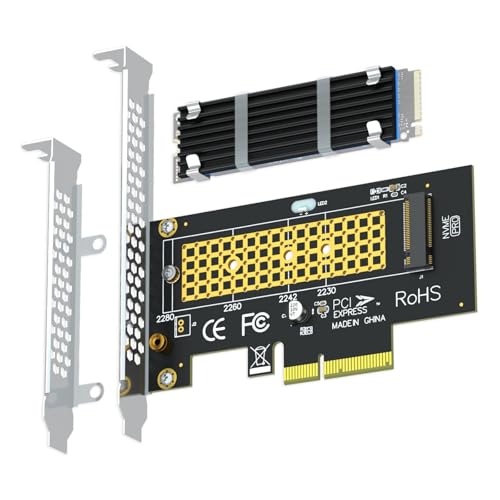
| Best Compatibility Pick | Max PCIe Speed: PCIe 4.0 x4 (up to 64 Gbps) | Slot Compatibility: PCIe x4, x8, x16 | Heatsink Included: Yes, 22x70x3mm aluminum heatsink | VIEW LATEST PRICE | Read Our Analysis |
| SABRENT M.2 NVMe SSD to PCIe x16 Adapter Card Gen5 Heatsink |

| Best for Gen5 | Max PCIe Speed: PCIe Gen5 x4 (up to 16 GBps bidirectional) | Slot Compatibility: PCIe x16 (may fit x4/x8) | Heatsink Included: Yes, built-in aluminum heatsink with thermal padding | VIEW LATEST PRICE | Read Our Analysis |
| MAIWO NVMe M.2 SSD to PCIe Adapter Card |

| Budget-Friendly Pick | Max PCIe Speed: PCIe 3.0 x4 (up to 32 Gbps) | Slot Compatibility: PCIe x4, x8, x16 | Heatsink Included: No heatsink included | VIEW LATEST PRICE | Read Our Analysis |
| M.2 NVMe to PCIe X4 Adapter with Heatsink For PCIe Gen4 / Gen3 NVMe SSDs |

| Best Value | Max PCIe Speed: PCIe 4.0 x4 (up to 64 Gbps) | Slot Compatibility: PCIe x4, x8, x16 | Heatsink Included: Yes, aluminum heatsink with two thermal pads | VIEW LATEST PRICE | Read Our Analysis |
More Details on Our Top Picks
SABRENT M.2 NVMe SSD to PCIe X16/X8/X4 Adapter Card Heatsink
The SABRENT EC-PCIE stands out as the top-rated overall pick for anyone upgrading a desktop with an NVMe SSD. Slot it into any PCIe x4, x8, or x16 slot, then secure your M.2 NVMe drive using the included screws. The aluminum heatsink with thermal pads keeps your drive cool during heavy use. It supports drive sizes 2230 through 2280, so most NVMe drives fit. Before installing, confirm your BIOS recognizes NVMe over PCIe, or the drive won’t appear. It works with Windows 7 through 11 and Linux. The warranty covers one year, extendable to five years with registration.
- Max PCIe Speed:PCIe 3.0 x4 (speed limited by host slot)
- Slot Compatibility:PCIe x4, x8, x16
- Heatsink Included:Yes, aluminum with thermal pads
- SSD Size Support:2230, 2242, 2260, 2280
- OS Compatibility:Windows 7 (with hotfix), 8, 10, 11, Linux
- Warranty:1-year limited (extendable to 5-year with registration)
- Additional Feature:Extendable 5-year warranty
- Additional Feature:Extra thermal pad included
- Additional Feature:Tool-free installation
GLOTRENDS M.2 NVMe to PCIe 4.0 X4 Adapter with Heatsink for NVMe SSD
Needing broad compatibility, GLOTRENDS’ PA09-HS adapter earns its place as a top compatibility pick for NVMe SSD users. It converts PCIe x4, x8, or x16 slots to M.2 Key M, supporting 2230, 2242, 2260, and 2280 NVMe SSDs. Note that M.2 SATA SSDs won’t work here. The built-in 22x70x3mm heatsink reduces SSD temperatures by 5–20°C. Both 12cm and 8cm low-profile brackets are included, covering most build types. Windows 7 requires a separate NVMe driver, but Windows 8, 10, 11, Linux, and macOS work natively. A 30-day defect warranty and lifetime tech support back your purchase.
- Max PCIe Speed:PCIe 4.0 x4 (up to 64 Gbps)
- Slot Compatibility:PCIe x4, x8, x16
- Heatsink Included:Yes, 22x70x3mm aluminum heatsink
- SSD Size Support:2230, 2242, 2260, 2280
- OS Compatibility:Windows 7 (external driver needed), 8, 10, 11, Linux, macOS
- Warranty:30-day warranty against manufacturer defects
- Additional Feature:Dual bracket sizes included
- Additional Feature:FCC and CE certified
- Additional Feature:Lifetime tech support
SABRENT M.2 NVMe SSD to PCIe x16 Adapter Card Gen5 Heatsink
Running a PCIe Gen5 motherboard, this SABRENT adapter card puts that full bandwidth to work. Drop your M.2 NVMe drive into the slot, lock it down without screws, and slide the card into a free full-length PCIe x16 slot. The built-in aluminum heatsink with thermal padding keeps temperatures controlled without a fan. It supports M-key NVMe drives in 2230 through 2280 lengths, but won’t work with SATA M.2 drives. In Gen4 or Gen3 slots, it runs at those slower speeds. Check for clearance around the slot before installing, since large GPU coolers or fans can block it.
- Max PCIe Speed:PCIe Gen5 x4 (up to 16 GBps bidirectional)
- Slot Compatibility:PCIe x16 (may fit x4/x8)
- Heatsink Included:Yes, built-in aluminum heatsink with thermal padding
- SSD Size Support:2230, 2242, 2260, 2280
- OS Compatibility:Not explicitly listed; NVMe-capable OS implied
- Warranty:2-year manufacturer limited
- Additional Feature:PCIe Gen5 capable
- Additional Feature:No bifurcation needed
- Additional Feature:2-year warranty
MAIWO NVMe M.2 SSD to PCIe Adapter Card
Looking for a budget-friendly pick that handles NVMe speeds without overspending? The MAIWO NVMe M.2 SSD to PCIe Adapter fits into x4, x8, or x16 slots and supports 2230, 2242, 2260, and 2280 M-Key NVMe drives. It delivers up to 32 Gbps with read speeds exceeding 3200 MB/s. Note that it doesn’t support SATA-based M.2 AHCI drives, so confirm your SSD type before purchasing. If your drive doesn’t appear in Device or Disk Management, download the NVMe driver directly from your SSD manufacturer’s website. The LED indicator flashes during activity, confirming your drive is connected and transferring data.
- Max PCIe Speed:PCIe 3.0 x4 (up to 32 Gbps)
- Slot Compatibility:PCIe x4, x8, x16
- Heatsink Included:No heatsink included
- SSD Size Support:2230, 2242, 2260, 2280
- OS Compatibility:Windows 7, 8, 10, Linux, macOS
- Warranty:Per MAIWO STORE policy
- Additional Feature:LED read/write indicator
- Additional Feature:Gold-plated PCB finish
- Additional Feature:Elastic M-Key connector
M.2 NVMe to PCIe X4 Adapter with Heatsink For PCIe Gen4 / Gen3 NVMe SSDs
The Bejavr M.2 NVMe to PCIe X4 Adapter gives you strong performance at a modest price. It supports PCIe Gen3 and Gen4 NVMe SSDs, delivering speeds up to 64Gbps through a PCIe x4 slot. You can also use it in x8 or x16 slots. It fits M.2 sizes 2230, 2242, 2260, and 2280. Install your SSD, apply both included thermal pads, and attach the aluminum heatsink using the fixing springs. No driver is needed for Windows 10/11, Linux, or Mac OS. Windows 7 users must download an NVMe driver separately from their SSD manufacturer’s website.
- Max PCIe Speed:PCIe 4.0 x4 (up to 64 Gbps)
- Slot Compatibility:PCIe x4, x8, x16
- Heatsink Included:Yes, aluminum heatsink with two thermal pads
- SSD Size Support:2230, 2242, 2260, 2280
- OS Compatibility:Windows 7 (extra driver needed), 8, 10, 11, Linux, macOS
- Warranty:30-day return policy; warranty details on product page
- Additional Feature:Dual thermal pads included
- Additional Feature:Spring-clip heatsink mounting
- Additional Feature:AHCI SSD compatible
Factors to Consider When Choosing a PCIe to NVMe M.2 Adapter
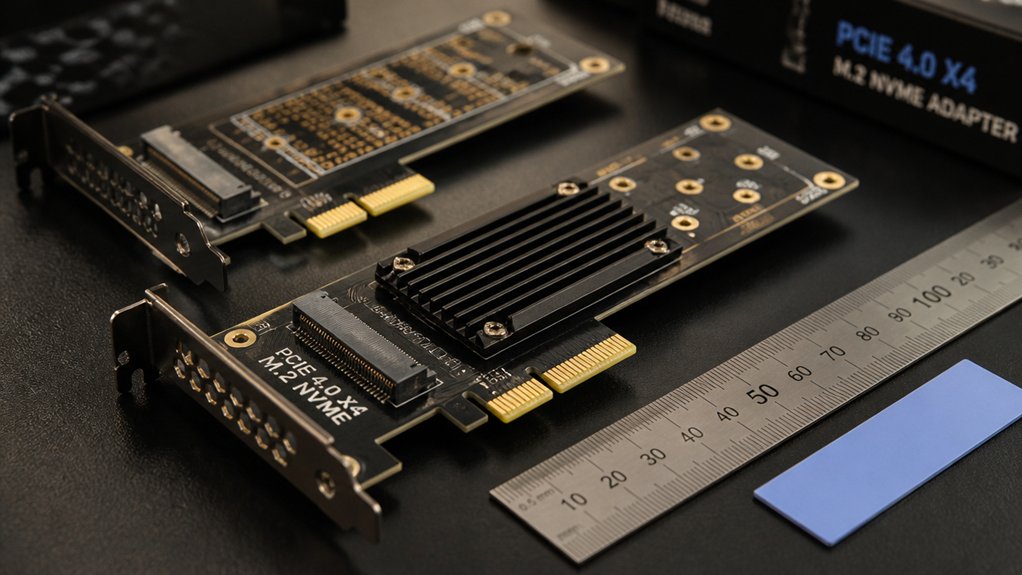
Choosing the right PCIe to NVMe M.2 adapter means checking several key factors before you buy. You’ll need to confirm your motherboard’s PCIe slot type, verify the adapter supports your NVMe drive’s generation, and check whether it includes thermal management like a heatsink to prevent throttling. You should also confirm OS and BIOS compatibility, and measure your case’s available space to ensure the adapter fits physically.
PCIe Slot Compatibility
Before buying a PCIe to NVMe M.2 adapter, you’ll need to confirm your motherboard’s PCIe slot compatibility. Check that your available slot is x4, x8, or x16, since x1 slots won’t work with most NVMe adapters. Next, verify your slot’s PCIe generation, whether Gen3, Gen4, or Gen5, and match it to the adapter’s supported generation. If your slot runs Gen3 but your adapter supports Gen4, the drive will operate at Gen3 speeds. Also, confirm your motherboard’s BIOS can recognize and boot from an NVMe device over PCIe, since older boards sometimes can’t detect these drives without a firmware update. Finally, make sure the adapter is designed for NVMe M.2 drives, not SATA M.2, as the two aren’t interchangeable.
NVMe Drive Support
Not all PCIe to NVMe M.2 adapters support every M.2 drive, so you’ll need to confirm compatibility before buying. First, check that your SSD uses the M-Key connector, which identifies it as NVMe. B-Key and B+M Key drives are SATA-based and won’t work with these adapters, even if they physically fit.
Next, verify the drive length. Most adapters support 2230, 2242, 2260, and 2280 sizes, but not every adapter covers all four. Match your SSD’s length to the adapter’s listed specifications before purchasing.
Also confirm your motherboard BIOS supports NVMe boot. Without that support, your system may not recognize the drive at startup. Check your BIOS settings or manufacturer documentation to verify NVMe PCIe recognition is enabled.
Thermal Management Features
Thermal management matters more with Gen4 and Gen5 NVMe drives, since these run hotter and throttle faster under sustained loads. Look for adapters that include a built-in aluminum heatsink, as this alone can reduce SSD temperatures by 5–20°C compared to running without cooling. That reduction keeps your drive from hitting thermal limits and dropping read/write speeds mid-task.
Check whether the adapter uses thermal pads on both sides of the SSD, one between the drive and the carrier, and one between the drive and the heatsink. Double-sided contact maximizes heat transfer. Most adapters rely on passive cooling, so if your case has poor airflow, factor that in. Active cooling with a fan exists on some models but isn’t common.
OS and BIOS Support
Most motherboards need NVMe BIOS support before they can detect or boot from an NVMe SSD installed through a PCIe adapter. Check your motherboard’s BIOS version and update it if NVMe support isn’t included. Without this update, your system may ignore the drive entirely or treat it as a non-bootable device.
Your operating system also matters. Windows 10 and 11, modern Linux distributions, and newer macOS versions support NVMe natively. Windows 7 requires you to install separate NVMe drivers before it can recognize the drive. Even with full OS support, some older boards only detect NVMe drives as secondary storage, not boot devices.
Before purchasing an adapter, confirm that your BIOS and PCIe slot, whether x4, x8, or x16, support NVMe operation fully.
Physical Size Constraints
Once you’ve confirmed your BIOS and OS can support the adapter, you’ll need to check whether it physically fits your build. First, verify your motherboard has an open PCIe x4, x8, or x16 slot with enough surrounding clearance for the adapter’s width and any attached heatsink. Heatsinks add height, so measure the space between your CPU cooler, GPU, and neighboring cards before purchasing. Next, confirm the adapter supports your SSD’s physical length, whether that’s 2230, 2242, 2260, or 2280. Some adapters come in full-length or low-profile form factors, so match the card size to your chassis type. A compact or mid-tower build may require a low-profile bracket. Check all three dimensions, length, height, and clearance, before finalizing your choice.
Final Thoughts
Choose your adapter based on your slot type, drive size, and budget. If you’re running a PCIe 5.0 board, go with the SABRENT Gen5. For broad compatibility and solid cooling, pick the GLOTRENDS PA09-HS or Bejavr. If you’re watching costs, the MAIWO works well for basic needs. Match the adapter to your motherboard’s PCIe version, confirm your drive size fits, and you’ll get a reliable performance upgrade without overcomplicating the process.